

Table of Contents
Are you tired of overpaying for CRM software that offers features you’ll never use? You’re not alone. Thousands of small businesses and startups face the same dilemma every day: choosing between expensive enterprise platforms and affordable, feature-rich alternatives that actually fit their budget and needs.
When comparing customer relationship management platforms, the engagebay vs hubspot debate consistently surfaces as one of the most critical decisions for growing businesses. Both platforms promise to streamline your marketing, sales, and customer support operations, but they take dramatically different approaches to pricing, feature accessibility, and user experience. This comprehensive engagebay hubspot comparison will help you understand which platform aligns with your business objectives, budget constraints, and scalability requirements.
People search for CRM solutions like EngageBay and HubSpot to solve pressing business challenges: disorganized customer data, inefficient sales processes, fragmented marketing campaigns, and poor customer support workflows. The right CRM doesn’t just store contact information—it transforms how you acquire, nurture, and retain customers while saving countless hours through intelligent automation. Whether you’re a solopreneur managing 50 contacts or a growing team handling thousands of leads, choosing between these platforms will significantly impact your productivity, revenue growth, and operational costs for years to come.
Software / Tool Essentials & Requirements
Before diving into either platform, you’ll need to understand the foundational requirements and what each system demands from users to function optimally.
Account Creation & Access Requirements:
Both EngageBay and HubSpot require a valid business email address for account registration. Personal email domains (Gmail, Yahoo, etc.) work fine for testing, but business domains provide better deliverability and professional credibility. You’ll need administrator access to set up integrations with your existing tools and the authority to connect payment methods for paid plans.
System Requirements & Supported Platforms:
EngageBay and HubSpot are both cloud-based SaaS platforms accessible through modern web browsers (Chrome, Firefox, Safari, Edge). Neither requires software installation on your computer, making them instantly accessible from any device with internet connectivity. Both offer:
– Web applications optimized for desktop and laptop computers
– Mobile apps for iOS and Android devices (varying feature completeness)
– Browser extensions for Chrome to capture leads and log activities
– Email plugins for Gmail and Outlook integration
Technical Specifications:
– Minimum internet speed: 5 Mbps for smooth performance
– Recommended browsers: Latest versions of Chrome or Firefox
– Screen resolution: 1280×720 minimum (1920×1080 recommended)
– JavaScript must be enabled
– Third-party cookies allowed for certain integrations
Integration Capabilities:
EngageBay offers native integrations with 200+ popular business tools including Zapier, Mailchimp, WordPress, Shopify, Stripe, PayPal, Zoom, Slack, and Google Workspace. HubSpot boasts over 1,400+ integrations through its App Marketplace, including enterprise-level connections to Salesforce, Microsoft Dynamics, and custom API access.
Pricing Plans & Trial Options:
EngageBay Pricing Structure:
– Free Plan: Forever free for up to 15 users (includes basic CRM, email marketing, and landing pages)
– Basic Plan: $12.74/user/month (billed annually)
– Growth Plan: $42.49/user/month (billed annually)
– Pro Plan: $84.99/user/month (billed annually)
HubSpot Pricing Structure:
– Free Tools: Limited CRM features for unlimited users
– Starter: $45/month (2 users, then $25/month per additional user)
– Professional: $800/month (5 users included)
– Enterprise: $3,600/month (10 users included)
Both platforms offer 14-day free trials for paid plans, though EngageBay’s free tier provides significantly more functionality without time restrictions.
Optional Add-ons & Advanced Features:
– Dedicated IP addresses for email sending (both platforms)
– Additional contact storage beyond plan limits
– Premium support packages
– White-label options (EngageBay offers this; HubSpot restricts to Enterprise)
– Advanced reporting and custom dashboards
– API access levels vary by plan tier
Alternative Platforms to Consider:
If neither platform perfectly matches your requirements, alternatives include Salesforce (enterprise-focused), Pipedrive (sales-centric), ActiveCampaign (marketing automation), Zoho CRM (budget-friendly), and Freshsales (balanced approach). However, for all-in-one functionality at accessible pricing, EngageBay consistently delivers exceptional value.
Setup Time / Installation & Performance

Understanding the time investment required to get operational with either platform helps set realistic expectations and plan your implementation timeline accordingly.
Initial Setup Duration:
EngageBay typically requires 30-60 minutes for basic setup, including account creation, team member invitations, initial contact imports, and email domain authentication. Advanced configurations like workflow automation, landing page creation, and third-party integrations may add another 2-4 hours depending on complexity and your existing tech stack.
HubSpot demands a similar initial timeframe—approximately 45-90 minutes for fundamental setup. However, the platform’s complexity increases substantially when configuring advanced features. Marketing Hub, Sales Hub, and Service Hub each require separate configuration attention, potentially extending total setup time to 6-10 hours for full deployment across all hubs.
Learning Curve Considerations:
EngageBay intentionally prioritizes simplicity and intuitive navigation. New users typically achieve basic proficiency within 1-2 days of regular use. The unified interface for marketing, sales, and service eliminates the context-switching confusion common in multi-hub systems.
HubSpot’s learning curve steepens considerably, especially for users new to comprehensive CRM platforms. The platform offers extensive educational resources through HubSpot Academy, but mastering the full feature set realistically requires 2-4 weeks of dedicated learning and practice. The separation of Marketing, Sales, and Service Hubs creates navigation complexity that smaller teams often find overwhelming.
Performance Expectations:
Both platforms deliver enterprise-grade performance with 99.9% uptime guarantees. Page load times typically range from 1-3 seconds depending on your internet connection and the complexity of the data being displayed.
EngageBay Performance Metrics:
– Email sending speed: Up to 100,000 emails per hour
– Contact database queries: Sub-second response times for databases under 100,000 contacts
– Workflow execution: Near-instantaneous trigger responses
– Report generation: 2-5 seconds for standard reports
HubSpot Performance Metrics:
– Email sending speed: Variable based on plan tier and sender reputation
– Contact database queries: Optimized for millions of records
– Workflow execution: Generally fast, though complex workflows may experience delays
– Report generation: 3-10 seconds depending on data volume and customization
Factors Affecting Usability:
Performance and user experience depend on several controllable factors:
1. Data volume: Both platforms slow marginally with databases exceeding 500,000 contacts
2. Browser choice: Chrome and Firefox consistently outperform Safari and Edge
3. Internet stability: Unreliable connections cause frustrating interruptions
4. Custom integrations: Third-party apps may introduce latency
5. Concurrent users: Team size impacts loading times during peak usage
6. Automation complexity: Elaborate workflows with multiple conditional branches require more processing time
Mobile Performance:
EngageBay’s mobile apps provide streamlined access to core CRM functions, contact management, and email capabilities. The interface responsively adapts to smaller screens without significant feature loss.
HubSpot’s mobile experience varies by hub. The Sales Hub mobile app excels for deal tracking and pipeline management, while Marketing Hub functionality remains limited on mobile devices. Users frequently report frustration with features available on desktop but absent or cumbersome on mobile.
Step-by-Step Instructions
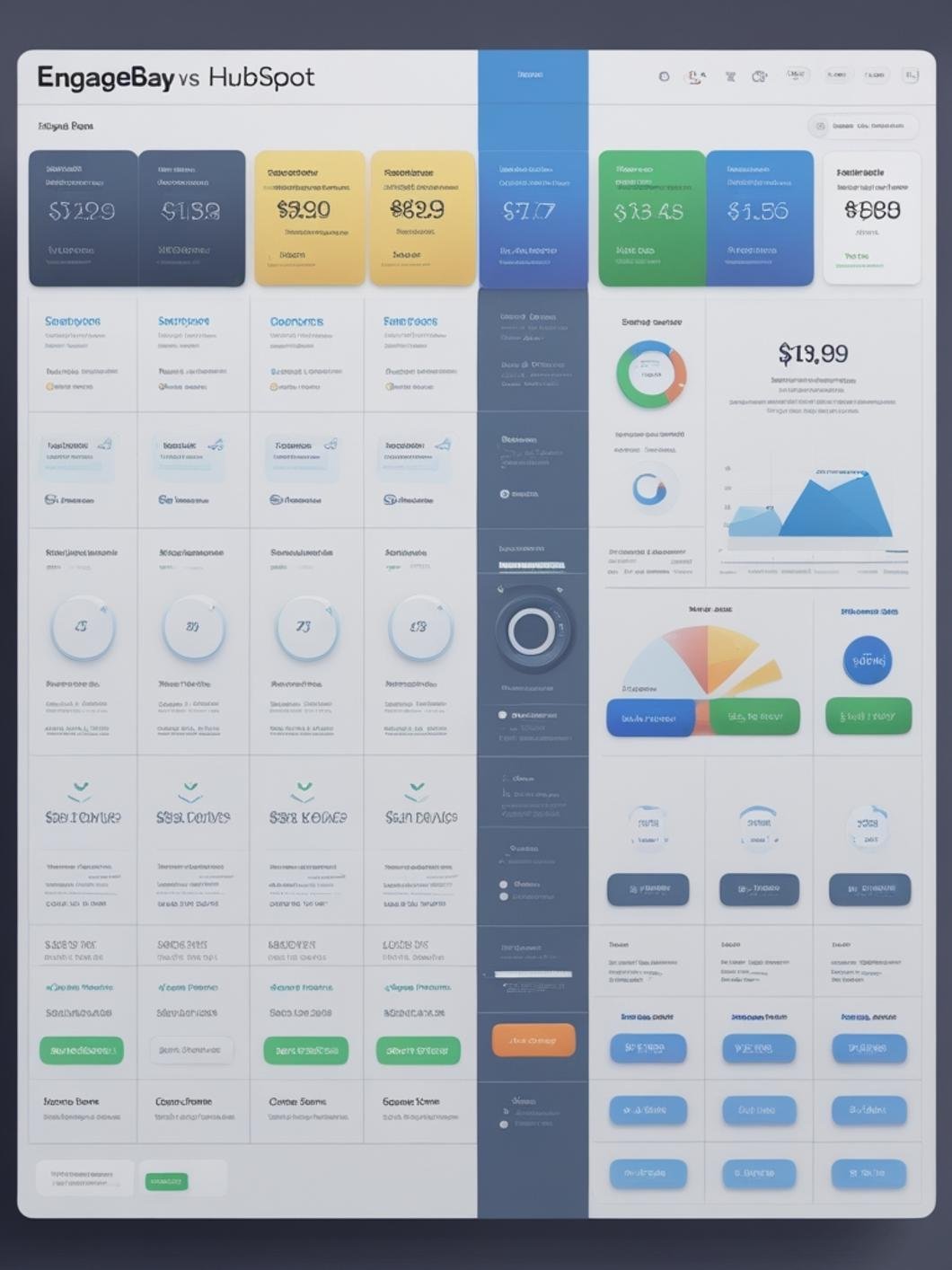
This detailed walkthrough covers everything from initial account creation through advanced feature configuration, ensuring you maximize value from your chosen platform. For this engagebay vs hubspot analysis, we’ll provide parallel instructions highlighting key differences in the user experience. This practical engagebay hubspot comparison demonstrates exactly how each platform handles common tasks.
Step 1: Account Creation and Initial Configuration
For EngageBay:
1. Navigate to engagebay.com and click “Get Started Free”
2. Enter your business email, create a secure password, and provide basic company information
3. Select your primary use case (Marketing, Sales, or Service) to customize your dashboard
4. Complete email verification by clicking the link sent to your inbox
5. Skip or complete the optional onboarding questionnaire to personalize feature recommendations
6. Land directly on your unified dashboard with access to all three modules
For HubSpot:
1. Visit hubspot.com and click “Get Started Free”
2. Complete the registration form with business email and company details
3. Verify your email address through the confirmation link
4. Choose which Hub(s) you want to activate (Marketing, Sales, Service, CMS, Operations)
5. Navigate through the multi-step setup wizard for your chosen Hub
6. Configure each Hub separately if using multiple modules
Practical Tip: Use a dedicated CRM email address (like crm@yourcompany.com) rather than personal addresses to ensure continuity when team members change roles.
Step 2: Import Existing Contacts and Data
Both platforms support:
– CSV file uploads from Excel or Google Sheets
– Direct imports from other CRMs (Salesforce, Zoho, etc.)
– Email provider imports (Gmail, Outlook)
– Manual contact creation
EngageBay Import Process:
1. Click “Contacts” in the left navigation menu
2. Select “Import Contacts” from the dropdown
3. Choose your import method (CSV upload, Google Contacts, or manual entry)
4. Map your CSV columns to EngageBay fields (automatic matching suggestions appear)
5. Review duplicate detection settings to prevent redundant entries
6. Confirm import and wait 30 seconds to 5 minutes depending on volume
7. Review import summary showing successful additions and any errors
HubSpot Import Process:
1. Navigate to Contacts > Contacts
2. Click “Import” in the upper right corner
3. Select import source (file, integration, or copy-paste)
4. Follow the multi-step wizard mapping fields
5. Configure advanced settings for duplicate management
6. Review and confirm import
7. Access detailed import reports showing successful records and failures
Practical Tip: Before importing, clean your contact list by removing duplicates, invalid email addresses, and outdated information. This prevents deliverability issues and keeps your database healthy from day one.
Step 3: Configure Email Authentication and Sending Domain
Proper email authentication dramatically improves deliverability rates and prevents your messages from landing in spam folders.
EngageBay Email Setup:
1. Navigate to Settings > Email Settings
2. Click “Add Sending Domain”
3. Enter your domain name (example.com)
4. Copy the provided DNS records (SPF, DKIM, DMARC)
5. Add these records to your domain’s DNS settings through your hosting provider
6. Return to EngageBay and click “Verify Domain”
7. Wait 24-48 hours for DNS propagation (usually completes within 2-6 hours)
8. Confirmation email arrives when authentication succeeds
HubSpot Email Setup:
1. Navigate to Settings > Marketing > Email
2. Click “Connect an Email Sending Domain”
3. Enter your domain and follow similar DNS configuration steps
4. Add provided DNS records to your hosting account
5. Verify domain authentication
6. Configure additional settings like subscription types and footer requirements
Practical Tip: If you lack DNS access or technical expertise, forward the DNS records to your IT team or hosting provider support. Most modern hosts offer guided assistance for adding these critical records.
Step 4: Create Your First Email Campaign
EngageBay Campaign Creation:
1. Click “Marketing” > “Email Campaigns”
2. Select “Create Campaign”
3. Choose from 200+ pre-designed templates or start from scratch
4. Customize using the drag-and-drop editor (add text, images, buttons, videos)
5. Configure sender name, subject line, and preview text
6. Select your recipient list or segment
7. Schedule send time or choose immediate delivery
8. Review spam score and optimization suggestions
9. Send test emails to verify appearance
10. Click “Send” or “Schedule”
HubSpot Campaign Creation:
1. Navigate to Marketing > Email
2. Click “Create Email”
3. Select email type (regular, automated, blog notification, etc.)
4. Choose template from extensive library
5. Customize using HubSpot’s editor
6. Configure settings and recipient criteria
7. Review optimization recommendations
8. Send test versions
9. Schedule or send immediately
Practical Tip: Always send test emails to multiple email clients (Gmail, Outlook, Apple Mail) and devices (desktop, mobile) to ensure consistent rendering before launching to your entire list.
Step 5: Build Your First Automation Workflow
Automation separates amateur CRM usage from professional, scalable operations.
EngageBay Workflow Setup:
1. Navigate to “Marketing” > “Marketing Automation”
2. Click “Create Workflow”
3. Name your workflow descriptively (e.g., “New Lead Nurture Sequence”)
4. Choose enrollment trigger (form submission, tag added, contact created, etc.)
5. Drag actions from the left panel to build your sequence:
– Send email
– Wait (time delay)
– Add tag
– Create task
– Send SMS
– Update contact field
– If/Then conditions
6. Configure each action’s specific parameters
7. Set enrollment restrictions to prevent contact re-entry
8. Activate workflow and monitor performance through built-in analytics
HubSpot Workflow Setup:
1. Go to Automation > Workflows
2. Click “Create Workflow”
3. Select workflow type (contact-based, company-based, deal-based, etc.)
4. Choose enrollment triggers from extensive options
5. Build workflow logic using similar drag-and-drop interface
6. Configure actions including HubSpot-specific features like lead rotation
7. Set re-enrollment and goal criteria
8. Review and activate
Practical Tip: Start simple with 2-3 step workflows before building complex multi-branch automations. This prevents overwhelming confusion and helps you understand platform capabilities incrementally.
Step 6: Create Landing Pages and Forms
EngageBay Landing Page Creation:
1. Click “Marketing” > “Landing Pages”
2. Select “Create Landing Page”
3. Choose from conversion-optimized templates
4. Customize design elements, copy, and call-to-action buttons
5. Configure form fields to capture lead information
6. Set up thank-you page or redirect URL
7. Configure SEO settings (meta title, description, URL slug)
8. Preview across devices
9. Publish to EngageBay subdomain or custom domain
10. Monitor conversion rates through built-in analytics
HubSpot Landing Page Creation:
1. Navigate to Marketing > Landing Pages
2. Click “Create Landing Page”
3. Select template (requires Marketing Hub Professional or higher for full features)
4. Customize using drag-and-drop editor
5. Configure form and follow-up actions
6. Optimize for SEO and mobile responsiveness
7. Preview and publish
Practical Tip: Limit form fields to essential information only. Each additional field decreases conversion rates by approximately 5-10%. Start with just name and email, then progressively profile contacts through subsequent interactions.
Step 7: Set Up Sales Pipeline and Deal Tracking
EngageBay Pipeline Configuration:
1. Navigate to “Sales” > “Deals”
2. Click “Pipeline Settings”
3. Create custom pipeline stages matching your sales process (Lead, Qualified, Proposal, Negotiation, Closed Won, Closed Lost)
4. Define probability percentages for each stage
5. Set up automated actions when deals move between stages
6. Create custom deal properties to track relevant information
7. Add deals manually or through automated workflows
8. Drag deals between stages as they progress
9. Monitor pipeline value and forecasting metrics
HubSpot Pipeline Setup:
1. Go to Sales > Deals
2. Access pipeline settings
3. Configure stages with similar customization options
4. Set up deal properties and requirements
5. Create multiple pipelines for different product lines or teams
6. Implement deal rotation and assignment rules
7. Track pipeline metrics through custom reports
Practical Tip: Align your CRM pipeline stages exactly with your actual sales process, not generic templates. This ensures data accuracy and meaningful forecasting that reflects business reality.
Step 8: Configure Team Access and Permissions
EngageBay User Management:
1. Navigate to Settings > Users & Teams
2. Click “Invite User”
3. Enter email addresses for team members
4. Assign roles (Admin, Marketer, Salesperson, Support Agent, Custom)
5. Configure specific permissions for each role
6. Set up teams to organize users by department or function
7. Define visibility rules for contacts, deals, and tickets
8. Save and send invitations
HubSpot User Management:
1. Go to Settings > Users & Teams
2. Add users with similar invitation process
3. Assign seats (which affects pricing on paid plans)
4. Configure permissions based on purchased Hubs
5. Create teams and hierarchies
6. Set up access restrictions
Practical Tip: Implement the principle of least privilege—grant users only the minimum access necessary for their roles. This protects sensitive customer data and prevents accidental deletions or unwanted modifications.
Benefits / Advantages
Understanding the distinct advantages each platform offers helps clarify which solution best matches your specific business requirements and growth trajectory.
EngageBay’s Key Advantages:
1. Exceptional Pricing Value
EngageBay delivers comprehensive all-in-one functionality at a fraction of HubSpot’s cost. Small businesses and startups save thousands annually while accessing marketing automation, sales CRM, and customer service tools that would cost 10-20x more on competing platforms. The generous free tier supports up to 15 users with 1,000 branded emails monthly, providing immediate value without financial commitment.
2. True All-in-One Platform
Unlike HubSpot’s segmented Hub approach, EngageBay provides unified access to marketing, sales, and service capabilities from day one at every pricing tier. This eliminates the frustrating experience of discovering that critical features require purchasing additional expensive Hubs.
3. Simplified User Experience
The intuitive interface reduces training time and accelerates team adoption. Users consistently report achieving productivity faster with EngageBay compared to HubSpot’s more complex, compartmentalized navigation structure.
4. No Hidden Costs or Feature Gatekeeping
EngageBay includes workflow automation, landing pages, email sequences, live chat, and helpdesk functionality across all paid plans. HubSpot restricts many comparable features to Professional or Enterprise tiers, creating unexpected budget surprises as businesses scale.
5. Flexible White-Label Options
EngageBay offers white-labeling capabilities on lower-tier plans, allowing agencies and consultants to brand the platform for clients without enterprise-level investment.
6. Responsive Customer Support
Users consistently praise EngageBay’s support responsiveness and helpfulness, with live chat and email support included even on free plans. Implementation assistance helps new users overcome technical challenges quickly.
HubSpot’s Key Advantages:
1. Extensive Integration Ecosystem
With 1,400+ native integrations, HubSpot connects seamlessly with virtually any business tool, from accounting software to project management platforms. This breadth surpasses EngageBay’s 200+ integrations, though Zapier bridges most gaps.
2. Advanced Enterprise Features
Large organizations with complex requirements benefit from HubSpot’s sophisticated features like advanced permissions hierarchies, custom objects, multiple brand management, and programmatic advertising integration.
3. Comprehensive Educational Resources
HubSpot Academy provides free, certification-backed training courses on inbound marketing, sales enablement, and customer success methodologies. This educational commitment builds user competency and industry best practices.
4. Brand Recognition and Ecosystem
HubSpot’s market leadership creates a vast community of certified partners, developers, and consultants. Finding implementation help, custom development, or strategic guidance proves easier due to ecosystem maturity.
5. Robust Reporting and Analytics
Enterprise-tier reporting capabilities exceed most competitors, offering custom report builders, attribution modeling, and data visualization tools that satisfy complex analytical requirements.
Comparative Advantage Summary:
| Feature Category | EngageBay Advantage | HubSpot Advantage |
| Pricing | 75-90% cost savings | Established procurement processes |
| Ease of Use | Faster learning curve | Extensive documentation |
| All-in-One Access | Unified from start | Specialized Hub expertise |
| Small Business Fit | Purpose-built affordability | Brand trust |
| Automation | Included at all tiers | More trigger options |
| White-Label | Available on Growth plan | Enterprise only |
| Integrations | Covers essential tools | Comprehensive marketplace |
| Support | Responsive across plans | Dedicated managers (high tiers |
| Scalability | Excellent to mid-market | Enterprise-grade infrastructure |
Performance and Reliability:
Both platforms maintain enterprise-grade uptime exceeding 99.9%, with redundant infrastructure and regular security audits. Neither platform experiences frequent outages or performance degradations that impact daily operations.
Email Deliverability:
EngageBay and HubSpot both provide excellent email deliverability rates (typically 95-98%) when proper authentication is configured. Deliverability depends primarily on sender reputation, list hygiene, and content quality rather than platform choice.
Scalability Considerations:
EngageBay comfortably supports businesses from solo entrepreneurs through mid-market companies with several hundred employees and hundreds of thousands of contacts. Pricing remains predictable and affordable throughout this growth journey.
HubSpot scales from small teams to global enterprises managing millions of contacts across multiple brands and regions. However, this scalability comes with exponentially increasing costs that often shock growing businesses.
Tips, Alternative Methods, or Use Cases
Maximizing CRM value requires understanding diverse implementation approaches and strategic use cases beyond basic contact management.
Strategic Use Cases for Different Business Types:
E-commerce Businesses:
– Integrate EngageBay with Shopify or WooCommerce to trigger abandoned cart recovery sequences
– Segment customers based on purchase history and lifetime value
– Create VIP workflows that provide exclusive offers to high-value customers
– Automate post-purchase review requests and feedback collection
– Track customer journey from first visit through repeat purchases
B2B Service Providers:
– Implement lead scoring based on engagement, company size, and behavior
– Create nurture sequences for different industry verticals
– Automate proposal follow-ups and contract renewal reminders
– Track sales pipeline across multiple decision-makers within target accounts
– Generate performance reports showing client results and ROI
SaaS Companies:
– Build onboarding sequences that reduce churn and accelerate time-to-value
– Trigger feature adoption campaigns based on usage data
– Automate trial expiration warnings and conversion incentives
– Create customer health scores combining engagement and support metrics
– Segment users for targeted upsell and cross-sell campaigns
Agencies and Consultants:
– White-label EngageBay for client deliverables and reporting
– Create separate pipelines for different service offerings
– Automate client reporting with scheduled performance summaries
– Track project milestones and deliverable deadlines
– Manage multiple client accounts with team permissions
Alternative Implementation Methods:
Gradual Rollout Approach:
Rather than implementing all features simultaneously, deploy one module at a time:
1. Month 1: CRM and contact management only
2. Month 2: Add email marketing and basic automation
3. Month 3: Implement landing pages and forms
4. Month 4: Deploy helpdesk and customer service features
5. Month 5: Advanced automation and integration
This phased approach prevents overwhelm and allows thorough team training on each component before adding complexity.
Integration-First Strategy:
Connect your CRM to existing tools before migrating processes:
– Link accounting software (QuickBooks, Xero) for financial visibility
– Connect project management tools (Asana, Monday.com) for workflow alignment
– Integrate communication platforms (Slack, Microsoft Teams) for notifications
– Sync calendar applications (Google Calendar, Outlook) for meeting management
– Connect e-signature tools (DocuSign, PandaDoc) for contract workflows
Data-Driven Optimization:
Continuously improve CRM performance through systematic testing:
– A/B test email subject lines, sending times, and content formats
– Analyze workflow completion rates to identify drop-off points
– Monitor pipeline velocity to optimize sales process bottlenecks
– Track campaign ROI to allocate marketing budget effectively
– Review contact engagement scores to identify at-risk relationships
Alternative Platforms Worth Considering:
Salesforce: Best for large enterprises with complex requirements and substantial budgets ($150-$300+ per user/month). Offers unmatched customization but requires significant implementation investment.
Pipedrive: Ideal for sales-focused teams prioritizing deal management over marketing automation ($14.90-$99 per user/month). Simple, visual pipeline management with limited marketing features.
ActiveCampaign: Excellent for marketing automation enthusiasts who need sophisticated email sequences ($29-$149+ per month). Weaker sales CRM capabilities compared to dedicated platforms.
Zoho CRM: Budget-friendly alternative with decent all-in-one features ($14-$52 per user/month). Interface feels dated, but functionality covers essential requirements.
Freshsales: Balanced approach with solid sales and marketing features ($15-$69 per user/month). Good middle ground between simplicity and sophistication.
Despite these alternatives, EngageBay consistently delivers the best value proposition for small to mid-sized businesses seeking comprehensive functionality without enterprise pricing.
Common Mistakes & Fixes
Understanding frequent implementation pitfalls helps you avoid costly errors and accelerate your path to CRM success.
Mistake #1: Importing Dirty Data Without Cleaning
The Problem: Users import contact lists containing duplicates, invalid email addresses, outdated information, and unengaged subscribers. This pollutes the database, triggers spam filters, and creates inaccurate reporting.
The Fix:
– Clean lists before importing using tools like NeverBounce or ZeroBounce
– Remove contacts inactive for 2+ years unless specifically needed
– Standardize data formats (phone numbers, addresses, company names)
– Merge duplicate records using built-in deduplication tools
– Implement validation rules to prevent future data quality issues
Mistake #2: Over-Complicating Initial Workflows
The Problem: New users create elaborate multi-step workflows with complex branching logic before understanding platform capabilities. These workflows frequently malfunction, creating frustrating debugging challenges.
The Fix:
– Start with simple 2-3 step workflows (trigger → action → completion)
– Test thoroughly with small contact segments before full deployment
– Add complexity incrementally after validating basic functionality
– Document workflow logic using flowcharts or written descriptions
– Monitor enrollment and completion rates to identify problems early
Mistake #3: Neglecting Email Authentication Setup
The Problem: Users skip SPF, DKIM, and DMARC configuration, resulting in poor deliverability rates and messages landing in spam folders. This undermines marketing effectiveness and damages sender reputation.
The Fix:
– Complete email authentication immediately during initial setup
– Request DNS access or IT assistance if you lack technical knowledge
– Verify authentication status before sending significant campaigns
– Monitor bounce rates and spam complaints consistently
– Maintain list hygiene to protect sender reputation long-term
Mistake #4: Failing to Define Clear Sales Stages
The Problem: Users accept default pipeline stages that don’t match actual sales processes. This creates confusion about deal status, inaccurate forecasting, and poor sales visibility.
The Fix:
– Map your actual sales process before configuring CRM pipelines
– Define specific entry and exit criteria for each stage
– Assign realistic probability percentages reflecting historical conversion rates
– Train sales team on consistent stage advancement practices
– Review pipeline regularly and adjust stages as processes evolve
Mistake #5: Ignoring Mobile Optimization
The Problem: Users design emails, landing pages, and forms on desktop computers without previewing mobile rendering. With 60%+ of emails opened on mobile devices, this oversight devastates conversion rates.
The Fix:
– Preview all content on multiple devices before publishing
– Use single-column layouts that adapt gracefully to small screens
– Ensure buttons are large enough for touch interaction (minimum 44×44 pixels)
– Test forms on mobile to verify field accessibility
– Optimize images for faster loading on cellular connections
Mistake #6: Setting and Forgetting Automation
The Problem: Users create workflows and never review performance, missing opportunities to optimize conversion rates and identify broken processes.
The Fix:
– Schedule monthly workflow performance reviews
– Monitor key metrics (open rates, click rates, conversion rates, unsubscribe rates)
– A/B test email content, timing, and messaging approaches
– Remove or pause underperforming workflows
– Update content to reflect seasonal changes and new offerings
Mistake #7: Inadequate Team Training
The Problem: Administrators learn the platform but fail to properly train team members, resulting in low adoption, data inconsistency, and feature underutilization.
The Fix:
– Conduct structured onboarding sessions for all team members
– Create internal documentation with screenshots and step-by-step instructions
– Assign platform champions who provide peer support
– Schedule regular training refreshers as features expand
– Encourage questions and create safe learning environments
Mistake #8: Not Leveraging Segmentation
The Problem: Users send identical messages to entire contact databases instead of creating targeted segments, reducing relevance and engagement.
The Fix:
– Segment contacts by industry, company size, engagement level, lifecycle stage, and behavior
– Create dynamic segments that automatically update as contact properties change
– Personalize messaging based on segment characteristics
– Test different approaches with various segments
– Monitor segment-specific performance metrics
Mistake #9: Overlooking GDPR and Privacy Compliance
The Problem: Users collect and store contact information without proper consent mechanisms, risking regulatory violations and reputation damage.
The Fix:
– Implement double opt-in for email subscriptions
– Include clear privacy policies linked from all forms
– Provide easy unsubscribe mechanisms in every email
– Honor data deletion requests promptly
– Document consent sources and dates for compliance audits
Mistake #10: Choosing Based Solely on Brand Recognition
The Problem: Decision-makers select HubSpot primarily because of name recognition without evaluating whether its features justify the substantial price premium for their specific requirements.
The Fix:
– Evaluate platforms based on actual feature requirements and budget
– Test multiple solutions through free trials
– Calculate total cost of ownership over 3-5 years
– Consider implementation time and learning curve
– Prioritize value delivery over brand prestige
Conclusion
Selecting the right CRM platform represents one of the most consequential technology decisions your business will make, directly impacting sales efficiency, marketing effectiveness, customer satisfaction, and ultimately, revenue growth. The engagebay vs hubspot comparison reveals two fundamentally different approaches to CRM: HubSpot offers enterprise-grade sophistication with corresponding enterprise pricing, while EngageBay delivers comprehensive all-in-one functionality designed specifically for budget-conscious small and mid-sized businesses.
For the vast majority of growing businesses, EngageBay emerges as the superior choice. The platform provides essential marketing automation, sales pipeline management, and customer service capabilities without artificial feature restrictions or cost prohibitions. The unified interface eliminates the confusion of navigating separate Hubs, accelerating team adoption and productivity. Most importantly, EngageBay’s transparent, affordable pricing allows businesses to invest saved resources into growth initiatives rather than software licensing fees.
This comprehensive engagebay hubspot comparison demonstrates that expensive doesn’t necessarily mean better—especially when the more affordable option delivers everything your business actually needs. While HubSpot certainly serves enterprise clients with complex requirements admirably, the platform’s cost structure creates unnecessary financial burden for companies that would benefit equally from EngageBay’s streamlined, accessible approach.
The most successful CRM implementations focus not on feature quantity but on consistent usage, clean data, thoughtful automation, and alignment with actual business processes. Whether you choose EngageBay’s value-driven approach or HubSpot’s enterprise positioning, commit to proper implementation, team training, and continuous optimization. Your CRM should simplify operations, not complicate them—and for most businesses seeking that balance, EngageBay represents the smart, sustainable choice that grows with you without breaking the bank.
FAQs
Q1: Can I migrate from HubSpot to EngageBay without losing data?
Yes, EngageBay provides comprehensive migration support including contact exports, email template transfers, and workflow recreation assistance. You can export all contact data, company records, and deals from HubSpot as CSV files and import them directly into EngageBay using the field mapping tool. While automated workflows must be manually recreated (due to platform differences), EngageBay’s support team offers migration guidance to ensure smooth transitions. Most businesses complete migrations within 2-5 business days depending on database size and complexity.
Q2: Does EngageBay really offer the same features as HubSpot at a fraction of the price?
EngageBay includes marketing automation, email campaigns, landing pages, sales CRM, pipeline management, helpdesk, live chat, and appointment scheduling across all paid plans starting at $12.74/user/month. HubSpot restricts comparable functionality to Professional tier plans starting at $800/month for Marketing Hub alone. While HubSpot offers more advanced enterprise features and deeper integration options, EngageBay delivers all essential CRM capabilities that 90% of small-to-mid-sized businesses actually use daily. The value proposition strongly favors EngageBay for budget-conscious organizations.
Q3: Which platform is better for email marketing automation?
Both platforms provide robust email marketing capabilities including drag-and-drop editors, A/B testing, automation workflows, and detailed analytics. EngageBay includes these features across all pricing tiers, while HubSpot requires Marketing Hub Professional ($800/month) for full automation access. For businesses primarily focused on email marketing, EngageBay delivers exceptional value. However, if you need advanced features like adaptive testing, predictive sending optimization, or complex multi-touch attribution, HubSpot’s Professional or Enterprise tiers provide more sophisticated options.
Q4: How many contacts can each platform handle effectively?
EngageBay efficiently manages databases from hundreds to 500,000+ contacts depending on your plan tier. The platform maintains fast performance even with substantial contact volumes. HubSpot scales to millions of contacts and multiple brands, making it ideal for large enterprises with massive databases. For most small-to-mid-sized businesses (under 100,000 contacts), both platforms perform equivalently. EngageBay’s contact limits align appropriately with business size at each pricing tier, ensuring you never pay for unused capacity.
Q5: What happens if I outgrow EngageBay—is migration to enterprise platforms difficult?
While EngageBay comfortably serves businesses through mid-market scale, if you eventually require true enterprise features (multi-brand management, advanced permissions hierarchies, custom objects), data export and migration remains straightforward. Both platforms support standard data export formats (CSV, API access), and migration specialists can facilitate transitions to Salesforce, HubSpot Enterprise, or other platforms. However, most businesses discover EngageBay‘s growth plans accommodate their needs far longer than anticipated, often eliminating the need for costly enterprise migrations altogether.